

The dashboard
The dashboard is the full product surface — everything the CLI and API can do, plus the things they cannot: watching the team work, reviewing a diff line by line, and approving a deployment. It is at app.hlix.ai.
Prerequisites
Section titled “Prerequisites”- A hlix account and a workspace you are a member of
- Agency role (
owner,admin, ormember) for most screens; client collaborators see a deliberately narrower surface
How the navigation is organised
Section titled “How the navigation is organised”The sidebar has three bands, and the order is the argument: portfolio first, then the things that need you, then workspace-wide records.
| Band | Items | Answers |
|---|---|---|
| Portfolio | Overview · Projects · Customers · your recent projects | “How is delivery going?” |
| Attention | Inbox · Approvals · Activity | “What needs me?” |
| Workspace | Global Knowledge · Custom Skills · Integrations · Invoices · Audit Log | “What is configured, and what happened?” |
Approvals carries a count badge when something is waiting on a human. It is the only navigation item that does, because it is the only one where work is blocked until you act.
The Overview screen
Section titled “The Overview screen”The portfolio screen: a stat row across the top, then delivery, workload and billing panels, then the two lists that tell you where to go next.
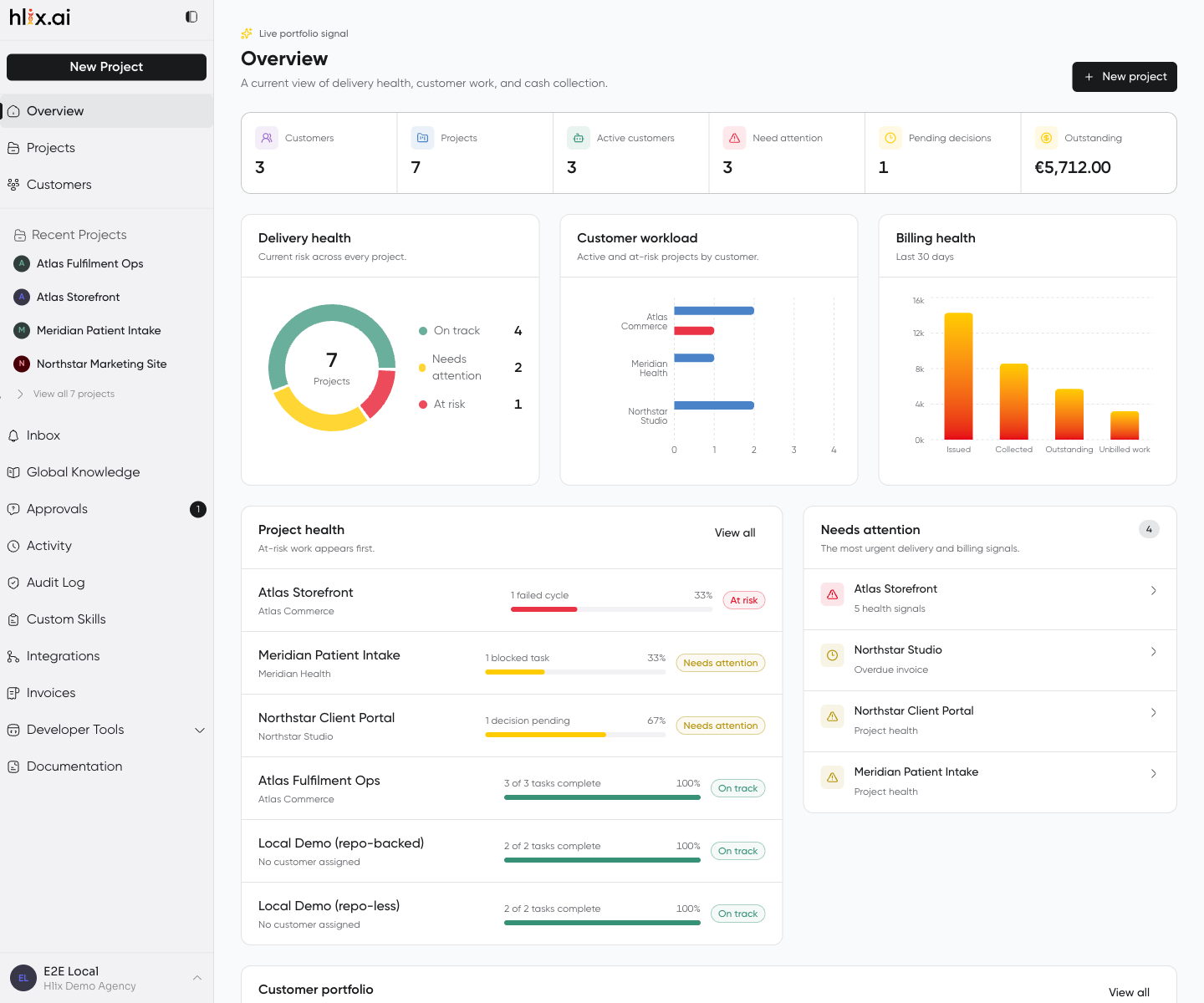
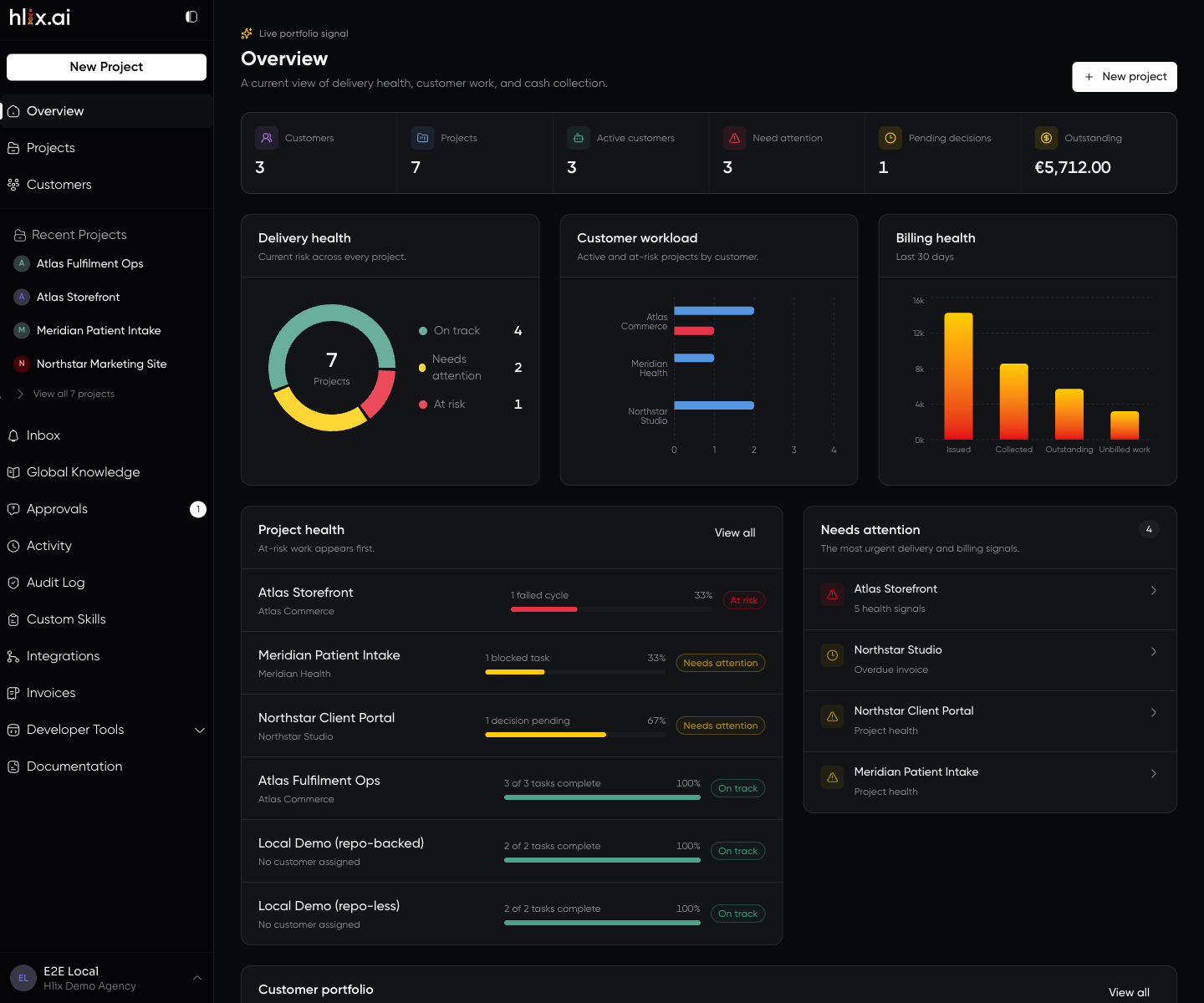
Project health ranks at-risk work first — a project with a failed cycle appears above one that is merely blocked. Needs attention is the narrower list: the signals that will not resolve on their own.
This is the screen to open first thing; it is not where you do work.
Projects
Section titled “Projects”Projects are grouped by customer, with an Internal / unassigned group for work not attached to a client account.
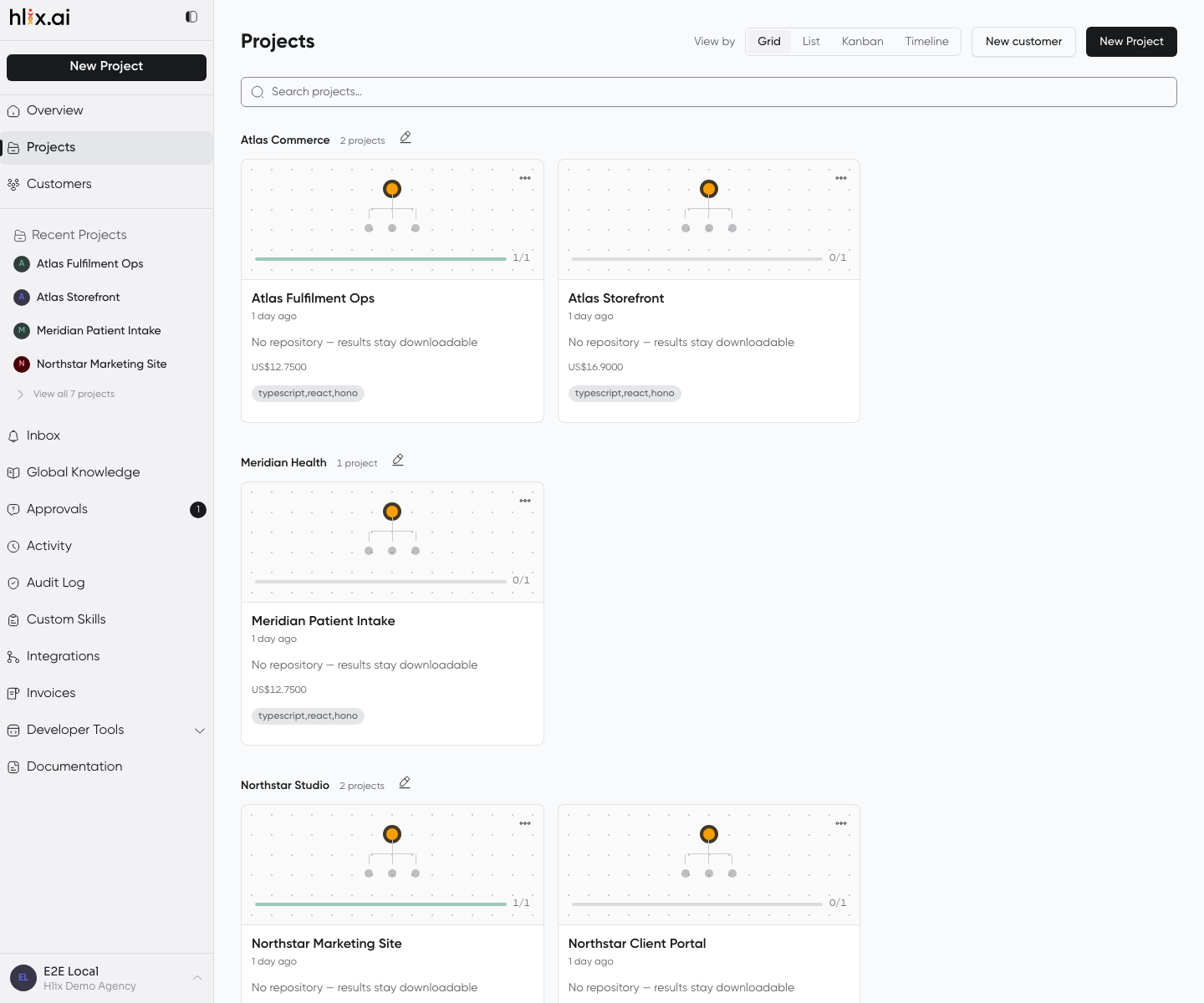
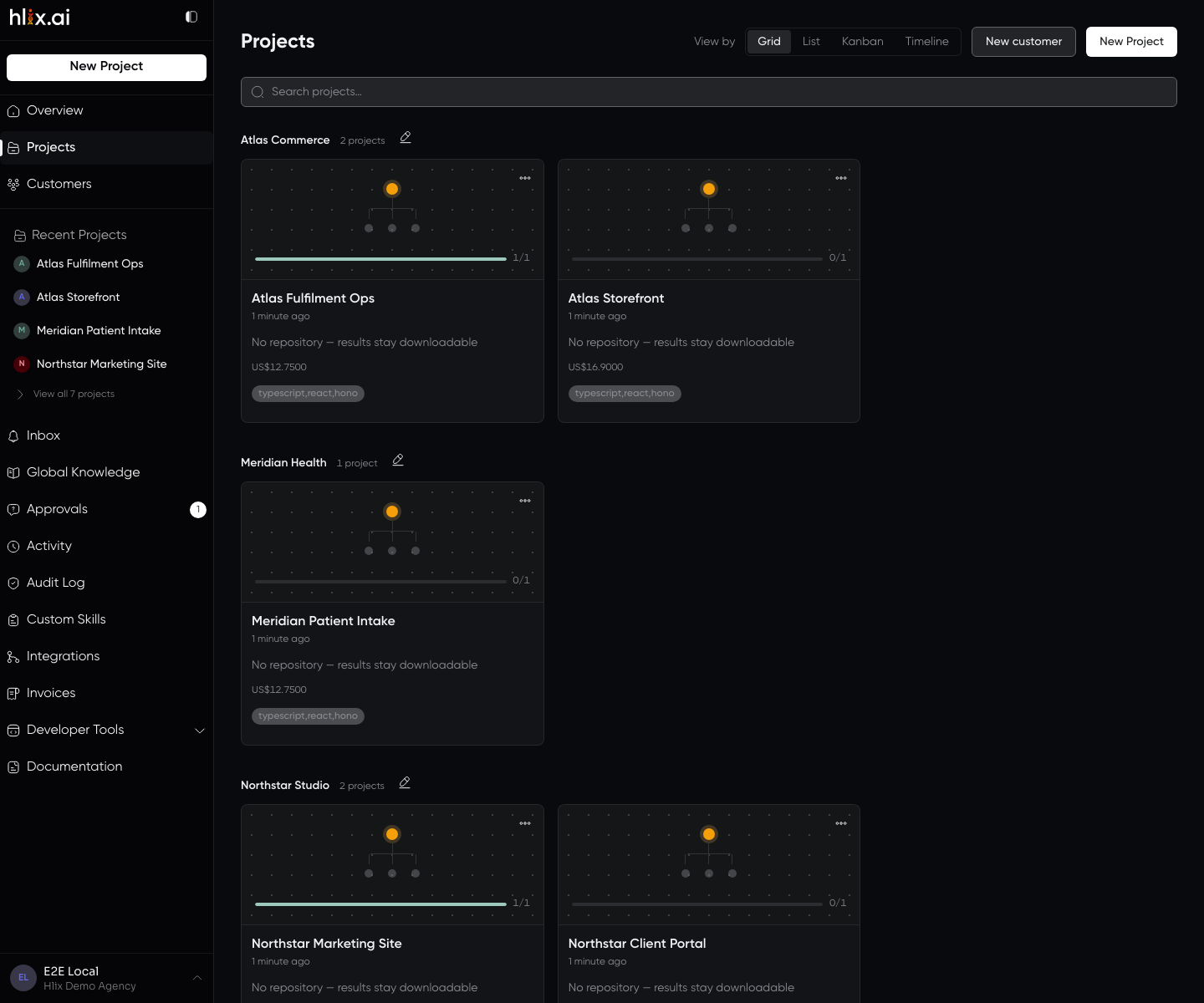
Four views of the same set — Grid for scanning, List for comparing columns, Kanban for delivery stage, Timeline for when things land. Each card carries the project’s cycle progress, spend so far, and whether it has a connected repository. No repository — results stay downloadable is a repo-less project, not an error.
Customers
Section titled “Customers”A customer record owns many projects without double-counting them, which is what makes the portfolio numbers add up.
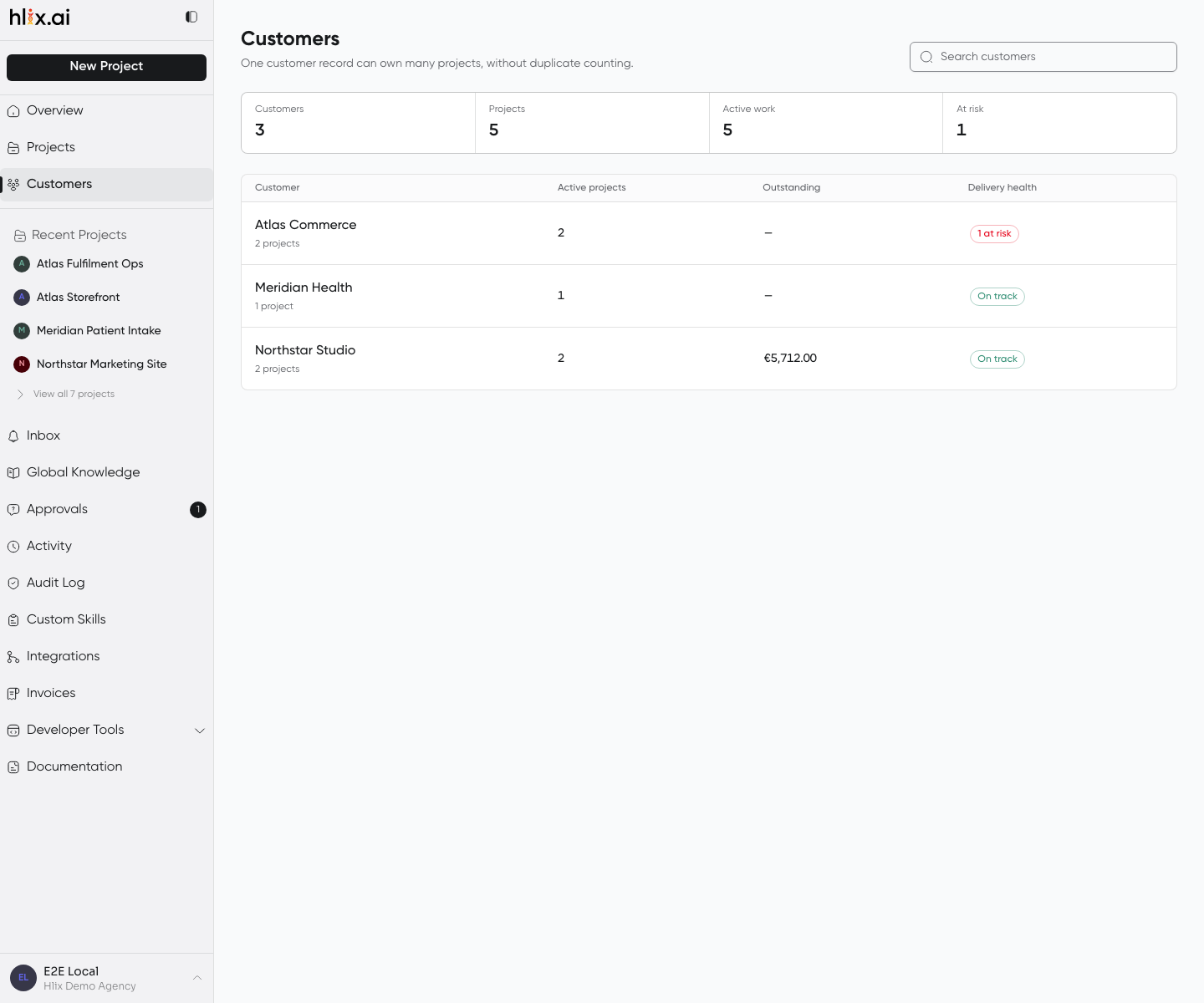
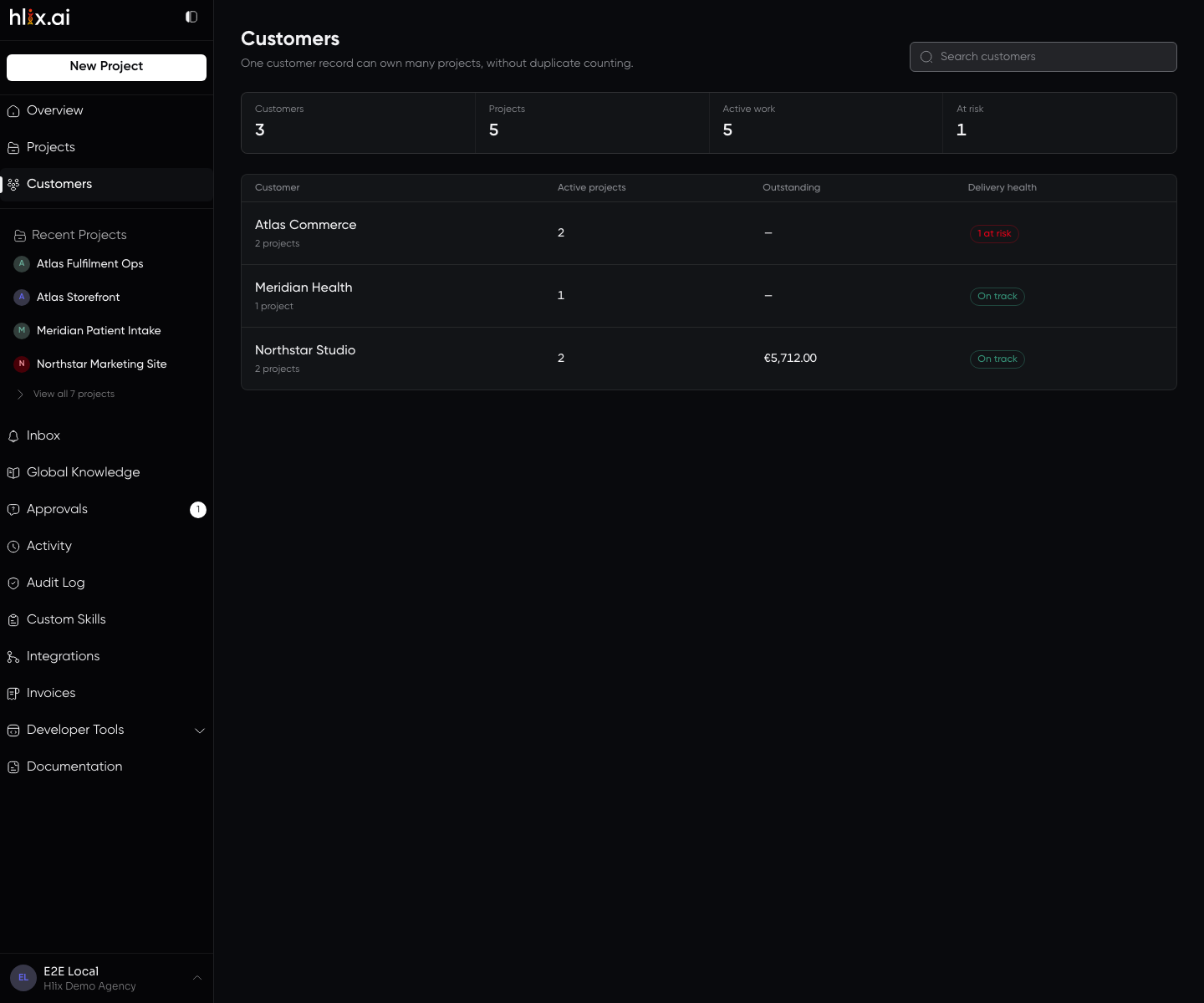
Delivery health and outstanding balance sit on the same row — the customer whose work is at risk and the customer who owes you money are rarely the same one, and this is where you see both.
The Canvas
Section titled “The Canvas”Opening a project lands on its Canvas: the orchestrator and the worker agents attached to it, as cards you can watch while they run.
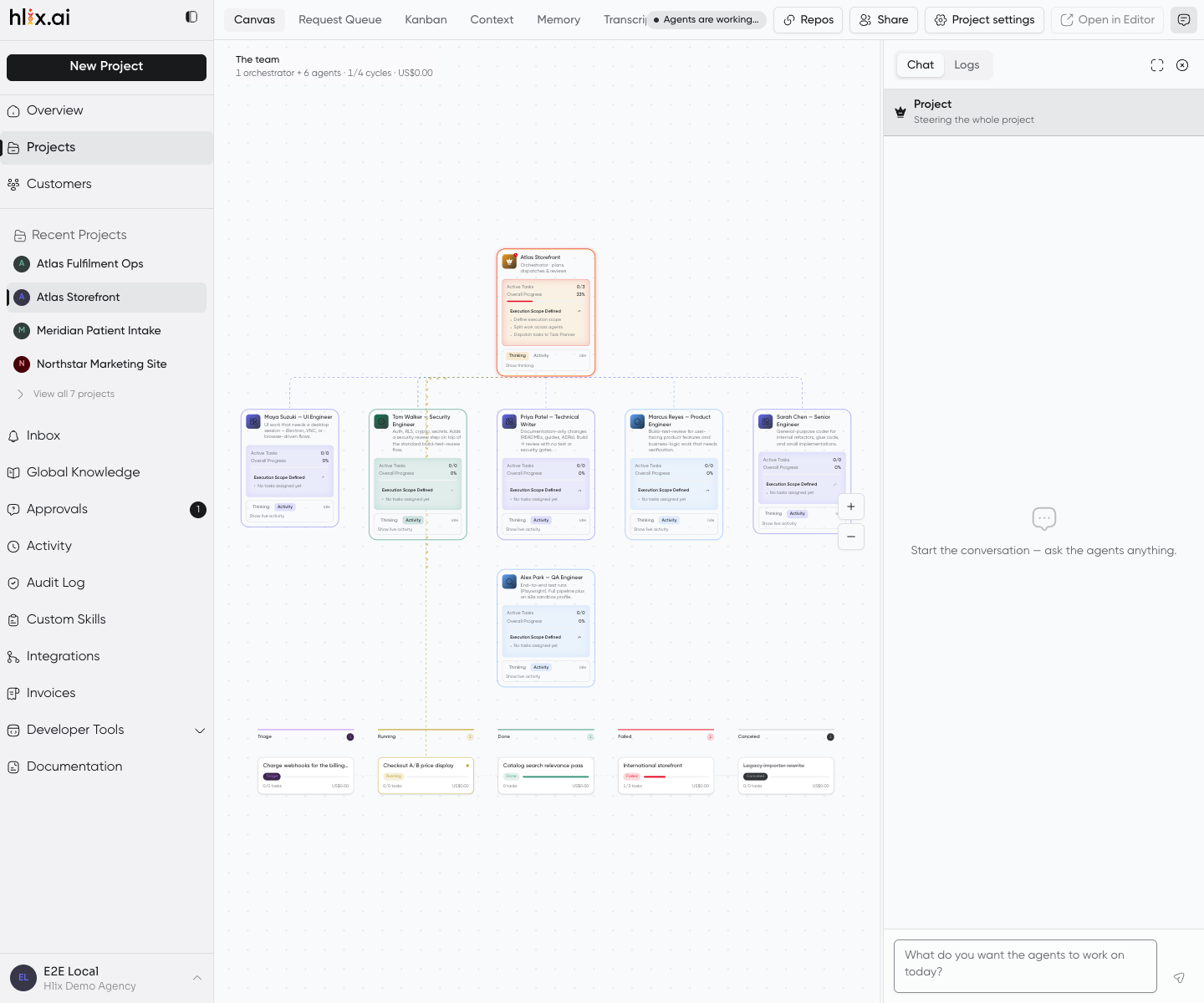
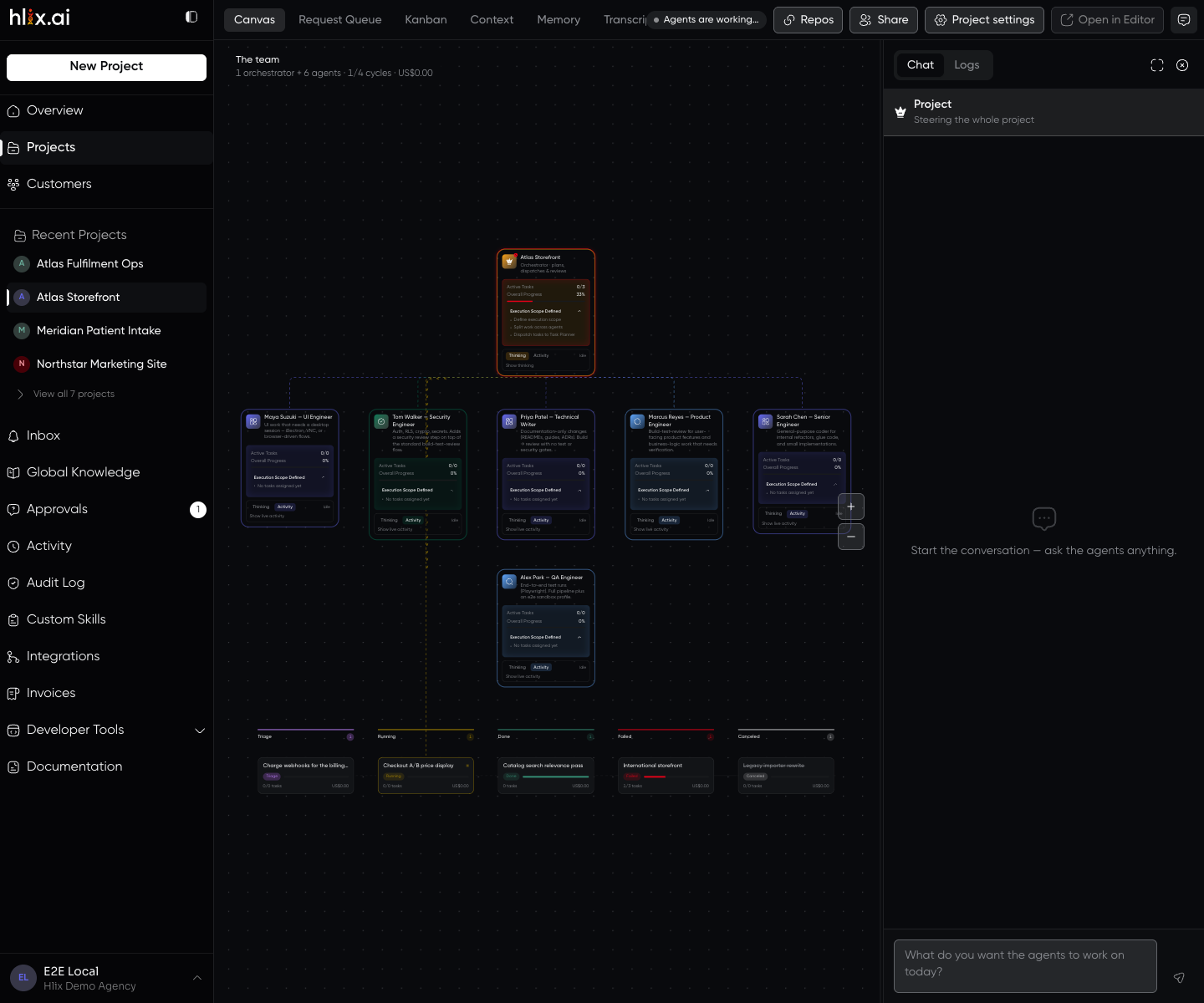
This is agents and orchestration made concrete: one orchestrator, six worker personas, each card carrying its own active-task count and progress. Agents have names from your workspace roster — the persona is the role, the name is the agent.
Below the team, the project’s cycles sit in status columns — Triage · Planned · Running · Done · Failed · Canceled — with a column drawn only once something is in it, and arrows carrying the roadmap order across them. A cycle the Triage Agent refused therefore has a place on the board instead of reading as work that never started. The cards are not draggable: every cycle move is a governed transition, so the board reports status rather than setting it.
The tabs across the top are Canvas · Request Queue · Kanban · Context · Memory · Transcript · Usage · Preview · Terminal · Desktop — the Canvas is one view of a project, not the whole of it. Repos, Share and Project settings sit alongside them, and Open in Editor hands the project to your local tooling. Terminal, Desktop and Transcript are agency-only; a client collaborator does not see them, because the backend refuses them anyway.
The right rail is where you talk to the team. Its composer — “What do you want the agents to work on today?” — is what starts a run.
Watching the team work
Section titled “Watching the team work”Four surfaces show a running project, and they answer different questions.
The timeline, in the Chat tab
Section titled “The timeline, in the Chat tab”The right rail’s Chat tab interleaves your conversation with the pipeline’s own steps as they happen: Triage & Planning, Dispatch, Build Planning, Build, Evaluator, Optimizer, Evaluate Roadmap, and the rest, each marked in progress, done, failed, or waiting.
Steps that reach a decision say what it was. Triage & Planning reports each cycle it judged — “forwarded ‘Fix checkout’ — high urgency, fast-review lane — user-facing payment path”, or the reason a cycle was canceled — and Evaluator reports its QA verdict with a one-line reason when it asks for changes. A step that fanned out work reports how much — “6 tasks ready across 2 batches” — and a step waiting on an approval names the request it is waiting for.
The timeline is still a narrative and not the record: the durable version of a triage decision is its audit row and stage history, and the full QA feedback is on the task’s review. The timeline also starts where you attach: it shows the run from the moment you opened it, and reloading the page starts it over.
Logs, beside Chat in the right rail, is the raw output the coding agents wrote while they worked — one line per line, redacted against the project’s secrets, with error lines marked. Select an agent card and it narrows to that agent; select nothing and it shows the whole cycle. The same material for the whole project has its own full-page view under Logs in the project settings navigation.
The orchestrator card
Section titled “The orchestrator card”Expand the orchestrator’s card and its Thinking tab streams the turn as it happens — its reasoning, its text, and each tool it calls, marked pending then complete. Beneath it is a composer that steers: send a message into the turn in flight and it is folded in rather than queued for afterwards.
Steering is orchestrator-only. A worker runs inside the orchestrator’s turn, so there is nothing to steer independently.
Worker cards
Section titled “Worker cards”A worker card carries two tabs, and which one is live depends on the harness that ran the task.
Thinking streams tokens — reasoning, text, and each tool call — when the task ran on Hlix, our own harness, because hlix drives that turn itself and can watch it.
Activity is the steps the agent actually took: commands, edits, tool calls, read from its sandbox output. This is the live signal for an external coder like Claude Code or Codex, whose conversation happens inside its own process. Those workers open on Activity, and their Thinking tab stays empty rather than inventing a stream that does not exist.
Transcript
Section titled “Transcript”Live streams are gone when you reload. Transcript, a project tab, is the post-hoc record: for each pipeline agent, what it was actually told and what it answered — the prompt and the response, redacted and truncated.
It covers the planner and tasks that ran on Hlix. A task run by an external coder is not in it, for the same reason its Thinking tab is empty — that conversation happens inside the coder’s own process, not through hlix’s agent runtime. Transcript is agency-only, alongside Terminal and Desktop.
Everything waiting on a decision from you, newest first — the single queue to clear before you go looking for work.
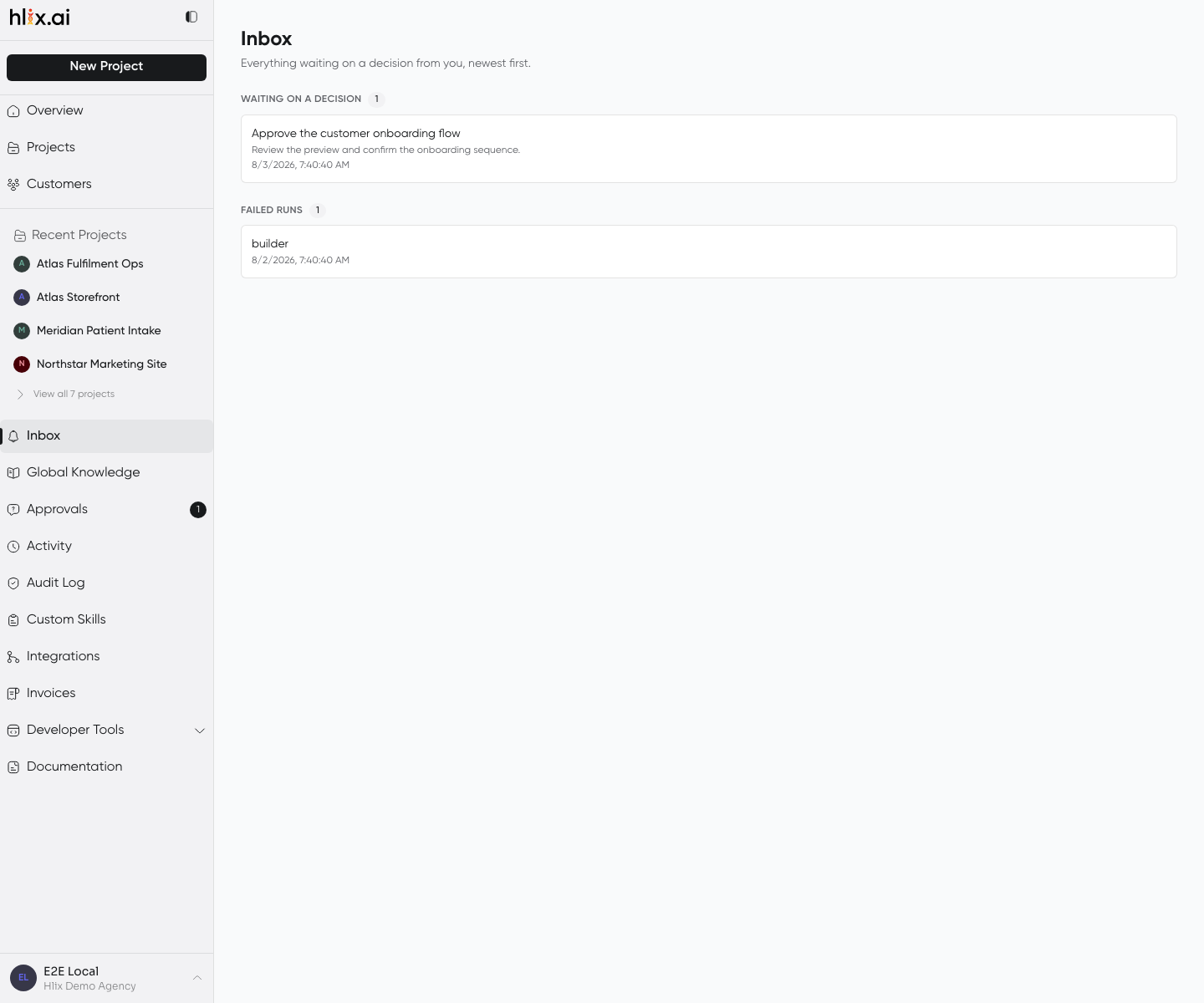
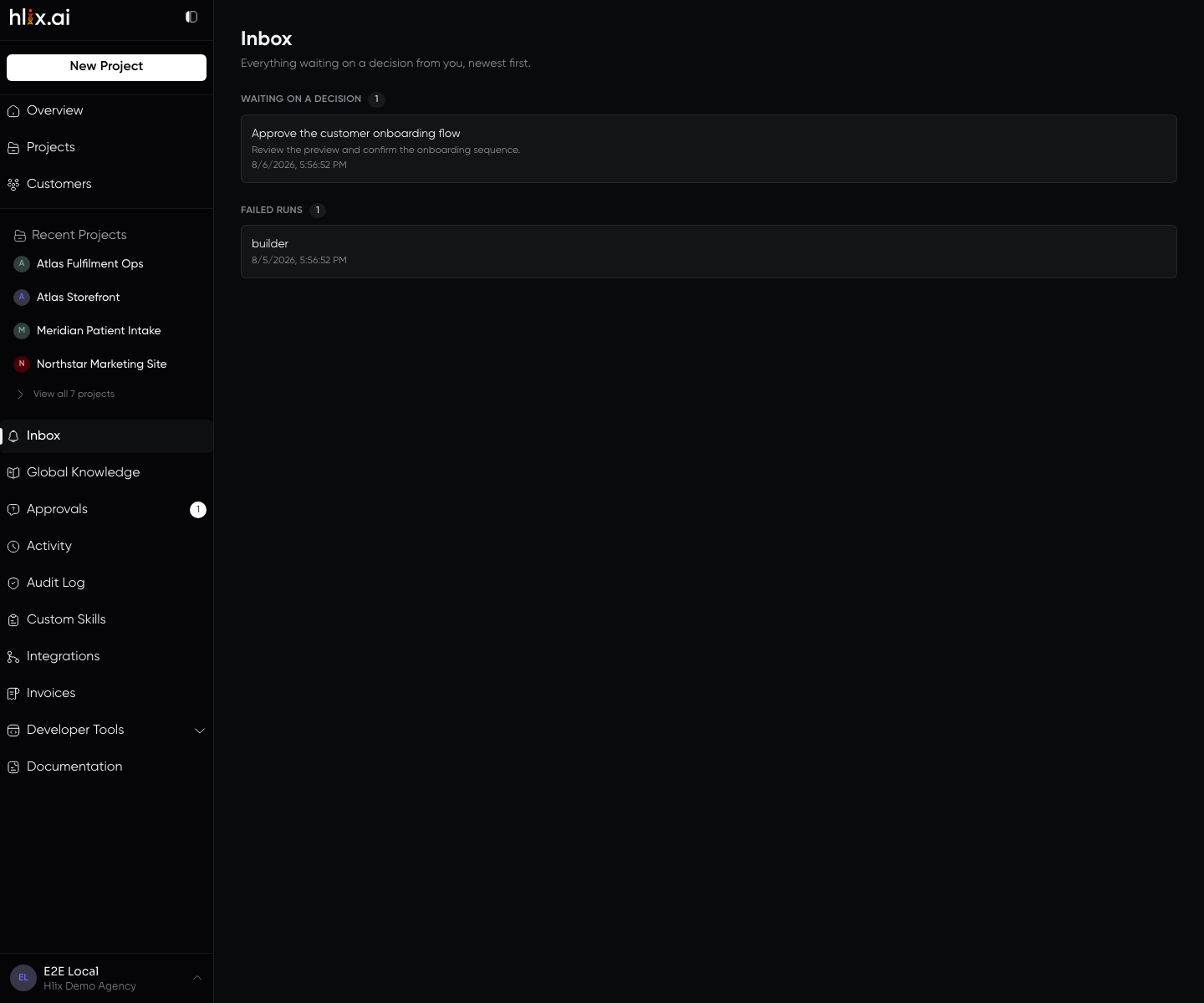
It groups by what kind of answer is needed: a decision that blocks a run, and a failed run that needs a human to look. Approvals is the narrower view of the first group.
Approvals
Section titled “Approvals”Where a gated deployment waits. A project with approval required parks before dispatching a gated cycle, and the run resumes only when someone resolves the request here.
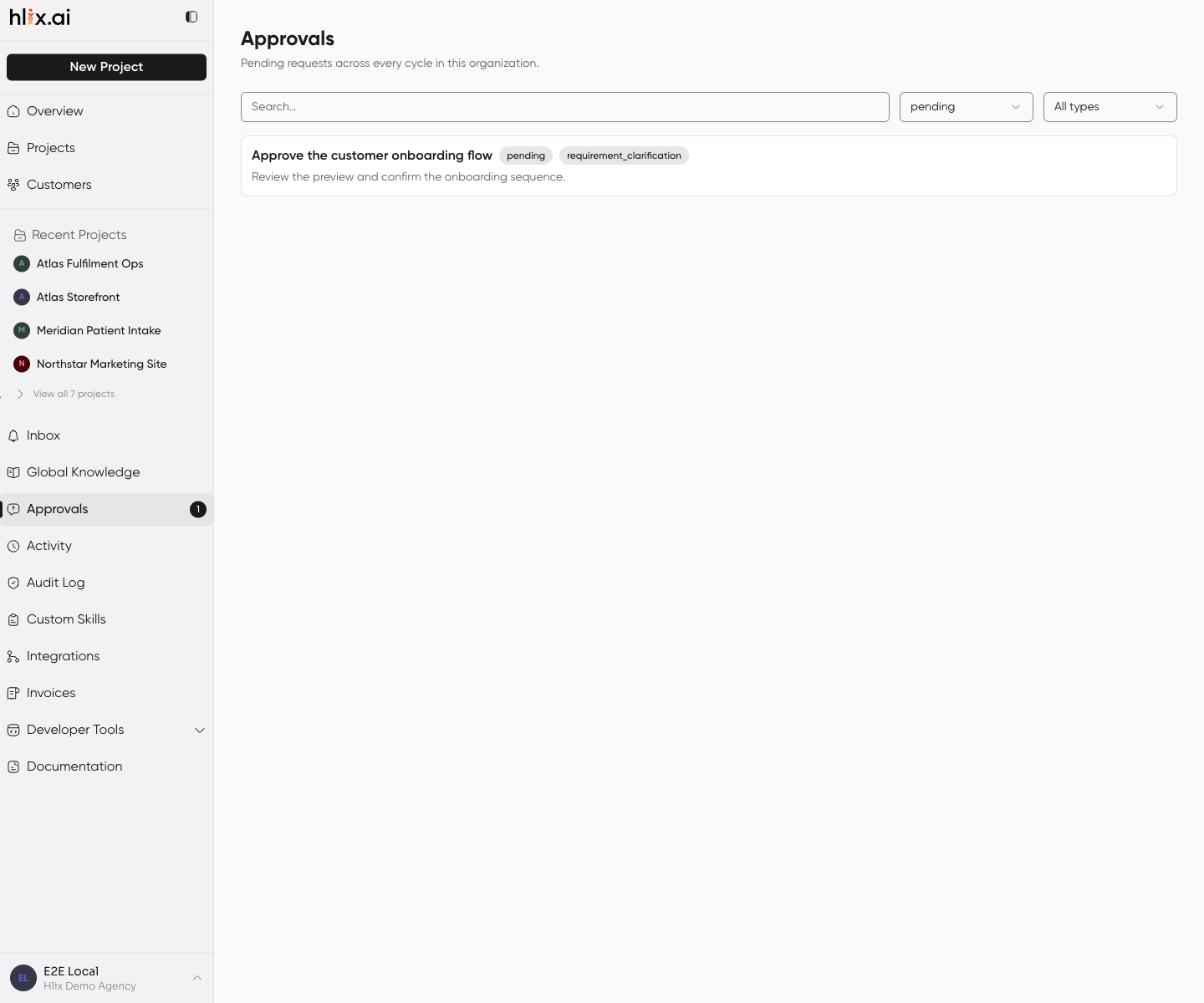
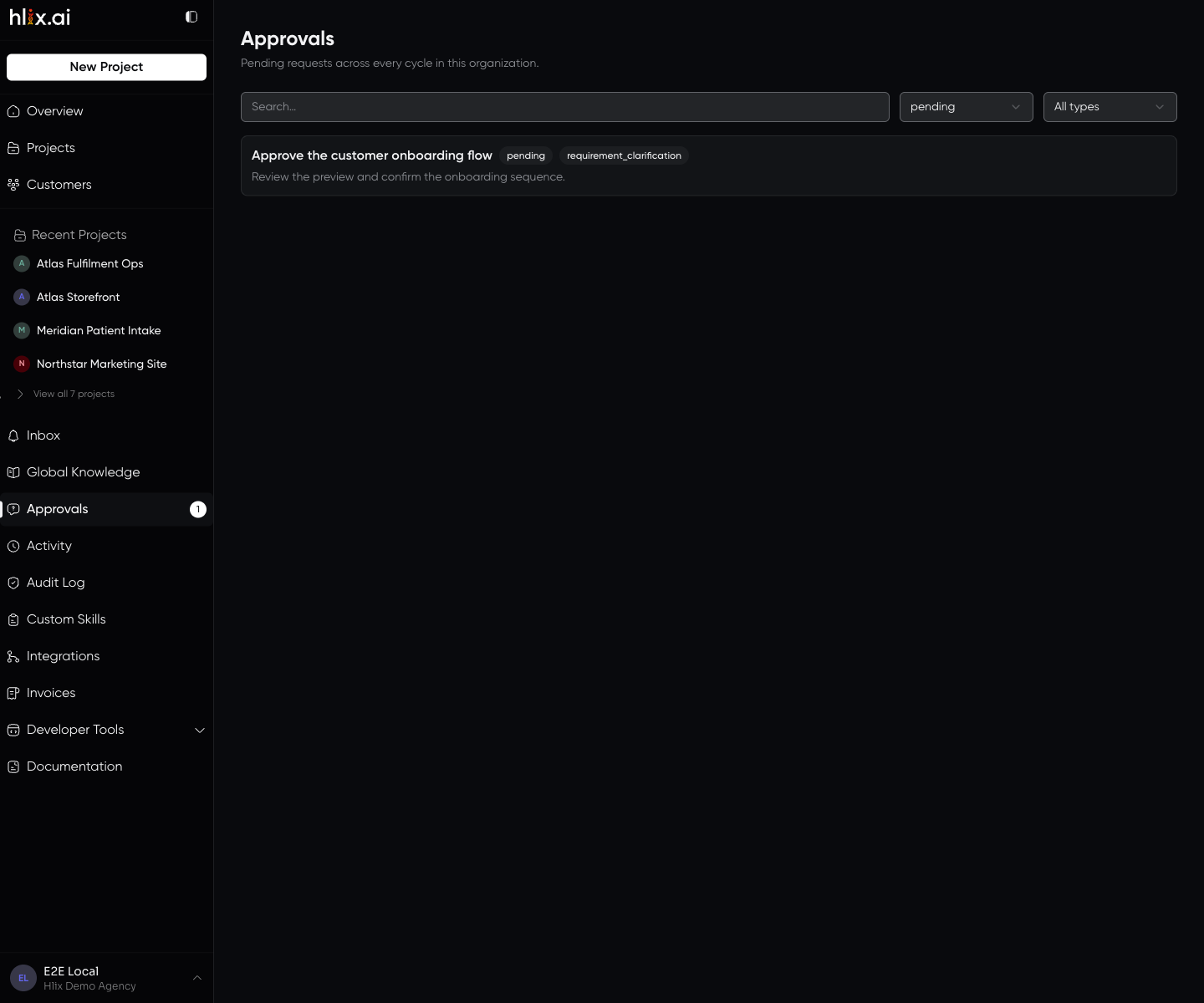
Approving dispatches; denying fails that cycle. See Approvals.
Activity and Audit Log
Section titled “Activity and Audit Log”Two different records, deliberately separated.
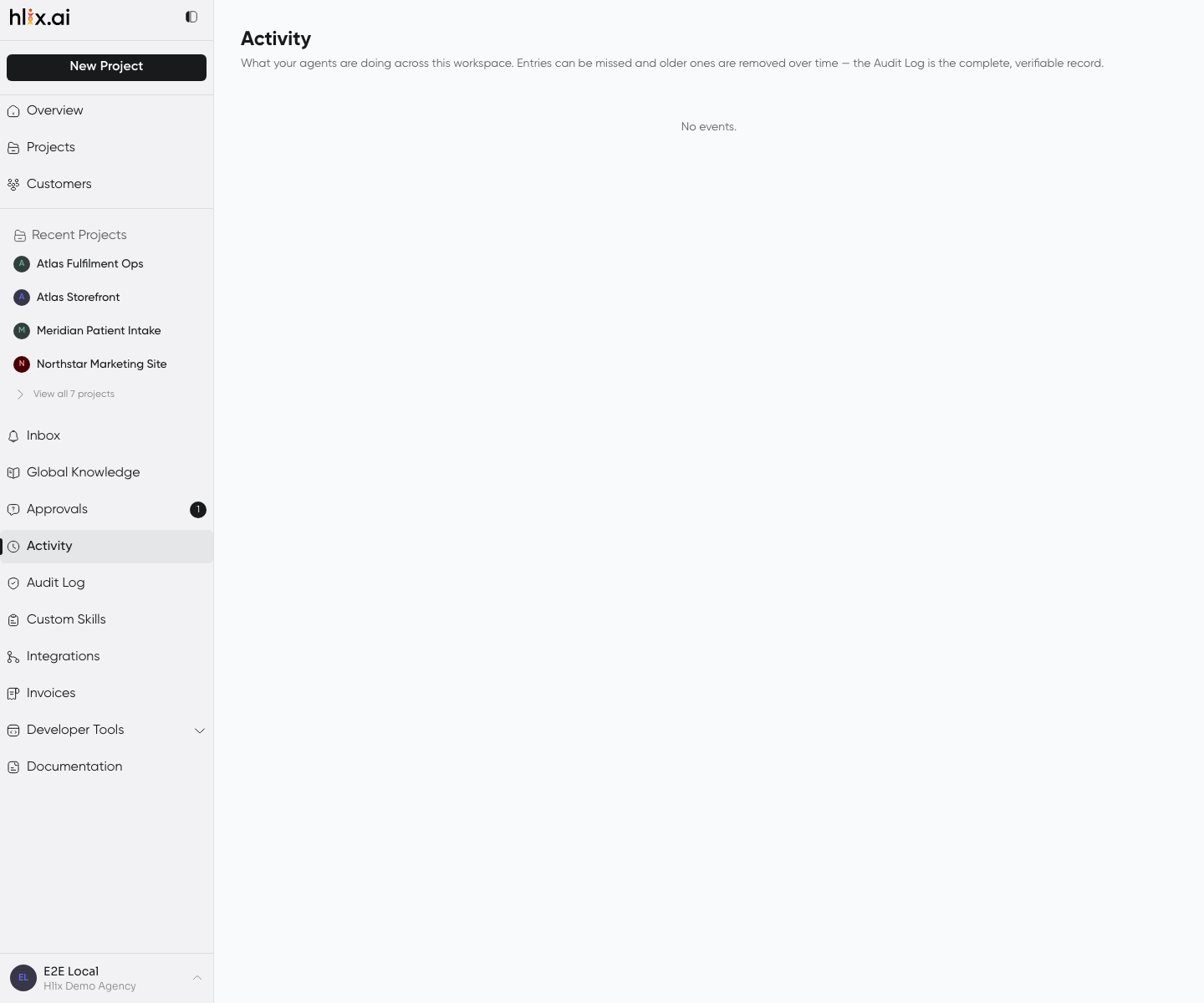
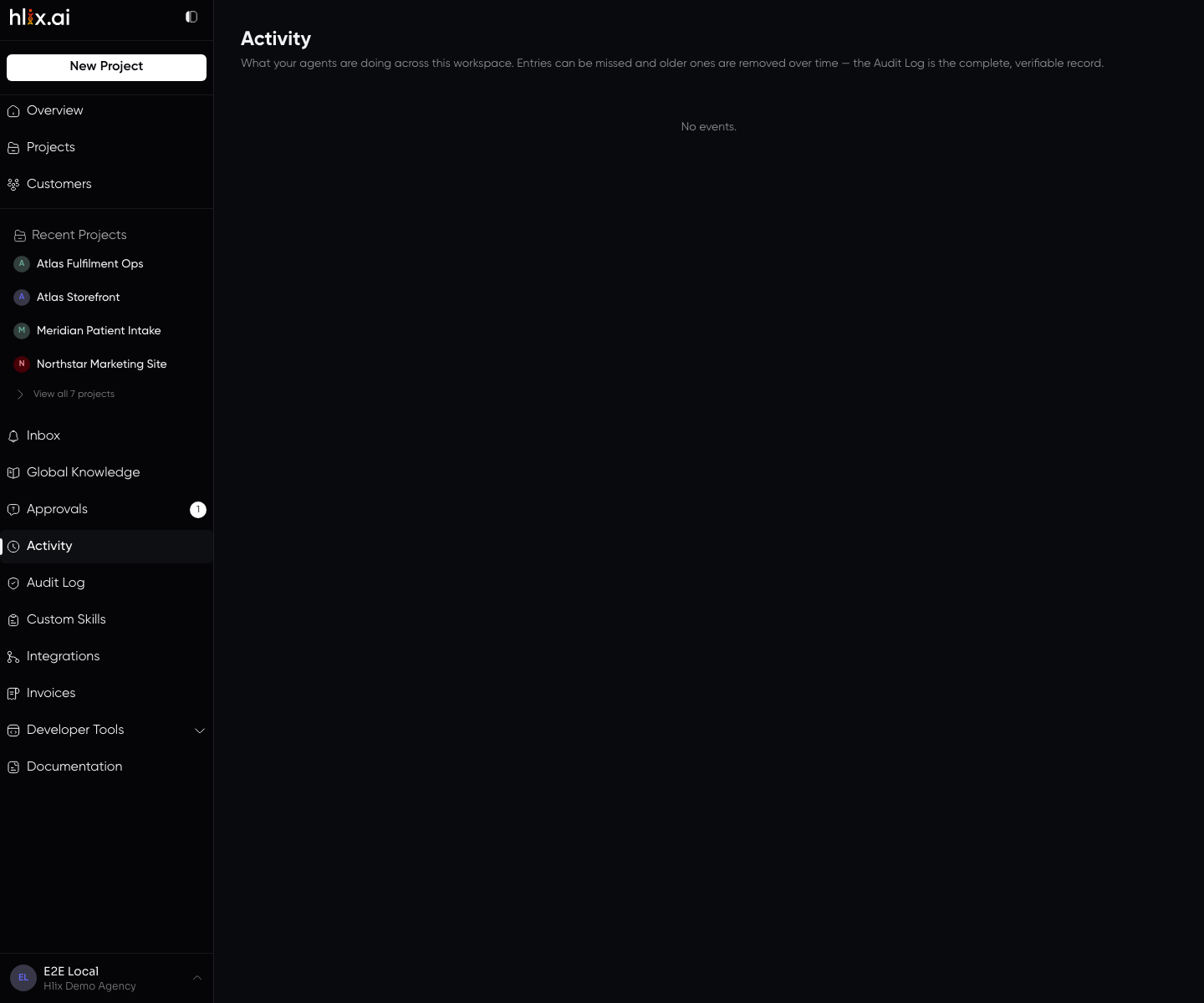
Activity is the product feed — best-effort, for humans following along.
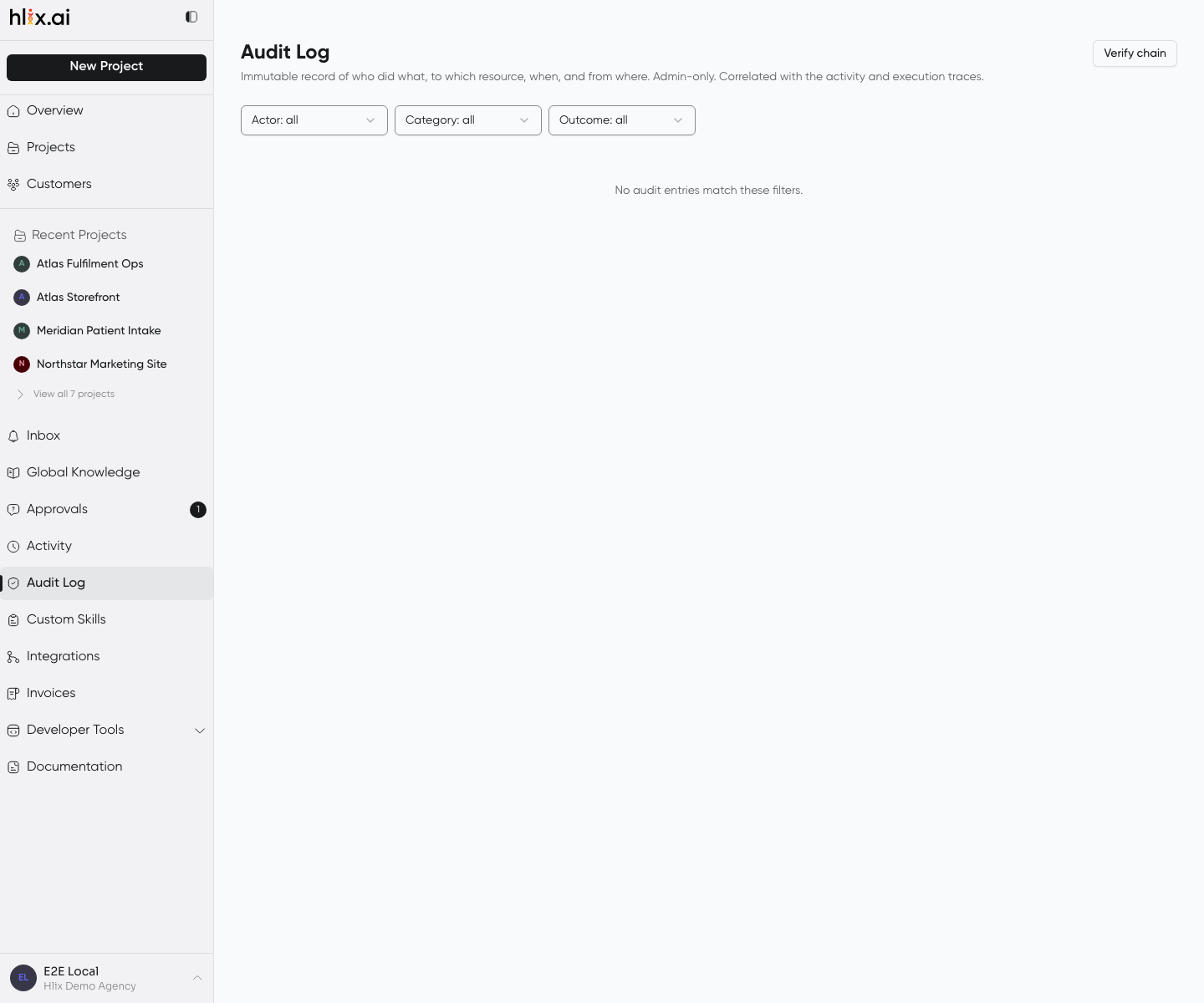
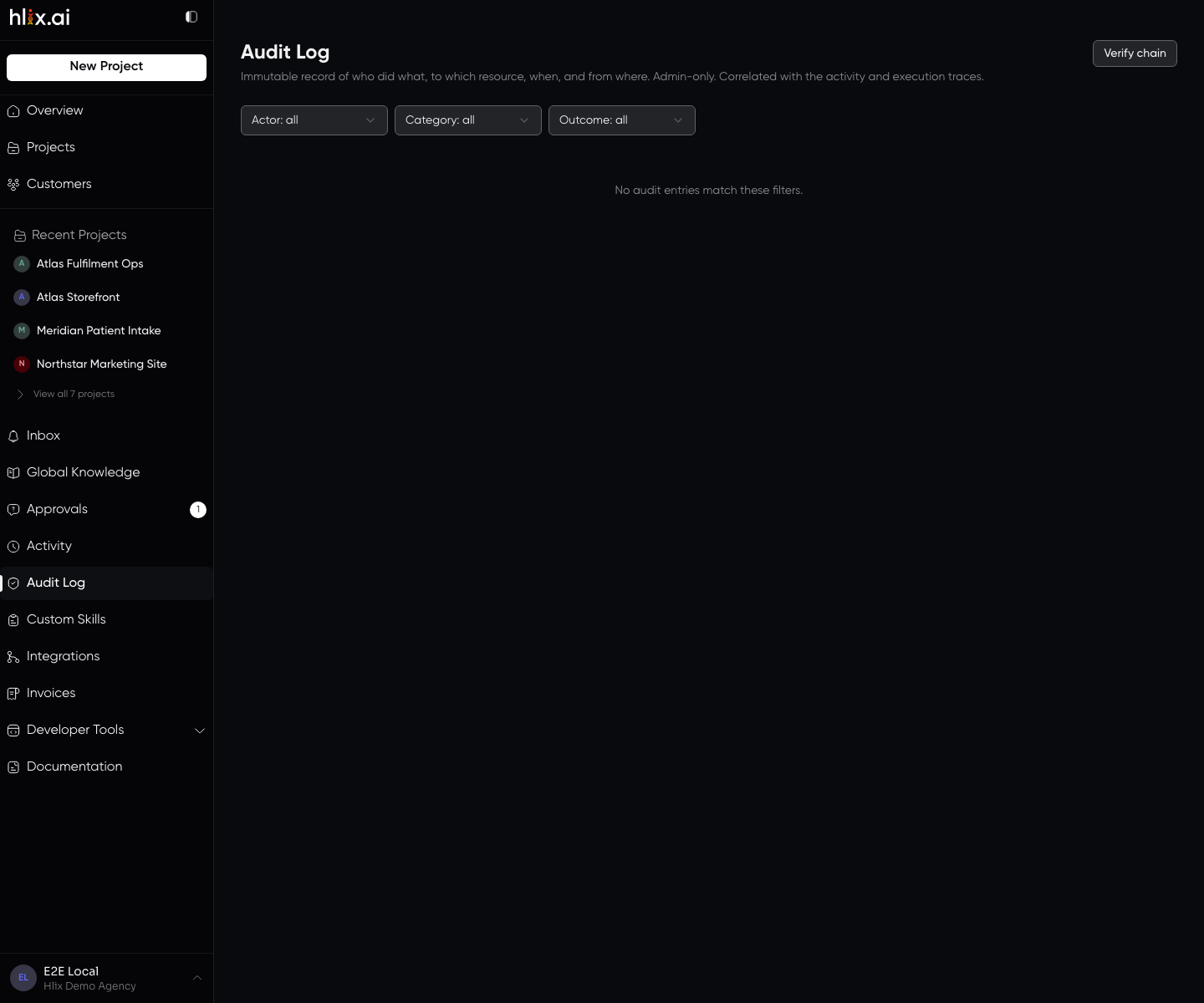
Audit Log is the compliance record — immutable, hash-chained, and restricted to owner and admin. If you are investigating an incident, this is the one that answers; the activity feed may have gaps by design.
Project settings
Section titled “Project settings”Project settings opens a second navigation, grouped the way an operator reasons about a project rather than the way its routes are filed. Every destination is agency-only.
| Group | Items |
|---|---|
| Delivery | Budget · Metrics · From Linear · Logs |
| Sources | Repositories · Work Intake · Connections |
| Coding Workspace | Runtime · Environments · Secrets · Packs |
| Agent | Agents · Behavior |
| Team | Collaborators |
Four of these decide how the project behaves rather than what it contains:
- Metrics reads the project’s real flow out of cycle stage history — throughput, cycle time, time per stage, aging work, and how much of the automation held without rework. See Delivery metrics.
- Behavior is where the approval gate lives. It is the same switch as the one on a cycle’s Request Queue tab, in its settings home rather than beside a run.
- Work Intake controls whether Linear-sourced requests may become cycles in this project.
- Repositories carries each repo’s worktree setup command — see below.
The worktree setup command
Section titled “The worktree setup command”Every task gets a fresh git worktree, which means a fresh, uninstalled checkout. A repository’s setup command is the shell command that prepares it — typically something like bun install && bun run build.
It runs in the task’s own worktree, never the shared clone, immediately after the worktree is created and before the coding agent starts. Both kinds of harness honour it — Hlix, and an external coder launched through the in-sandbox driver — with one difference worth knowing: on the in-sandbox path the command inherits the project’s resolved secrets, so a private-registry token is available to it. Hlix has no secrets plumbing for it yet.
The command has ten minutes. If it fails or times out, the task fails and the coder is never launched. That is the intended shape: a coder turned loose on an environment that could not be prepared produces a confident diff against a tree that never built. A retry is safe — the next attempt recreates the worktree rather than reusing a half-finished install.
Leave it empty for a repository that needs no preparation.
Workspace configuration
Section titled “Workspace configuration”- Global Knowledge browses the
org-scoped memory — the standards that apply to everything. - Custom Skills manages the skills available to your agents.
- Integrations connects GitHub, Linear, Slack, and Telegram.
- Settings covers the workspace, people and roles, AI models and harness selection, developer tools (API keys), billing, and regional preferences. AI models carries one row per orchestration role, including Triage — the model that decides whether an incoming request becomes a cycle and which risk lane it enters.
If a screen looks wrong
Section titled “If a screen looks wrong”- Overview panels read zero across the board. The workspace has no completed work yet, or you are in a workspace you just joined. Check the account switcher at the bottom of the sidebar.
- A project you expect is missing from Projects. Client collaborators only see projects shared with them. As an agency member, check the
Internal / unassignedgroup — a project with no customer lands there. - A project card says
No repository — results stay downloadable. That is a repo-less project working as designed, not a broken connection. See the Coding Workspace. - The Canvas shows agents but no activity. Nothing has been dispatched yet. The right-rail composer is what starts a run.
- A worker card’s Thinking tab is empty while it is plainly working. That task is running on an external coder rather than Hlix, and its conversation happens in its own process. Read its Activity tab instead — that is the live signal there.
- The chat timeline is shorter than the run. It streams from the moment you attached and does not survive a reload. The durable records are Logs, the task’s own history, and the Transcript tab.
- Metrics says “No cycles yet” on a busy project. Metrics measures cycles, not tasks. Work that never became a cycle has no stage history to compute from.
- The Approvals badge shows a count but the list is empty. The request resolved in another session; reload.
- Audit Log returns nothing for a member account. It is restricted to
ownerandadmin— intended behaviour, not a permissions bug. - A settings page refuses a change you can see. Some settings are
owner/adminonly, notably the workspace-wide harness, which names the coder for every project.